iOS Simulator runtimes and devices — the 20 GB Xcode doesn't show you
Last updated: October 2026
A runtime is a download: delete it and Xcode fetches it again, 8 GB at a time. A device is a folder of simulated apps and their data: delete it and Xcode makes a fresh one, but the logins, databases and test fixtures inside the old one are gone.
Both are managed by a registry that rm does not know
about, and current runtimes live where rm is not even
allowed. Use simctl, and the one Xcode settings pane that
actually shows the sizes.
simctl.Run this scan on your own Mac: download Shodhana — free for 14 days, Apple Silicon, macOS 14 or later.
Where they actually live now
The layout changed in Xcode 14, and most advice online predates it. On the Mac this guide was written on, with Xcode 27 and one iOS runtime installed:
/System/Library/AssetsV2/com_apple_MobileAsset_iOSSimulatorRuntime/
  …/AssetData/Restore/094-56039-099.dmg      7.9 GB — the runtime itself

/Library/Developer/CoreSimulator/Volumes/iOS_23F77/   where that image is mounted

~/Library/Developer/CoreSimulator/Devices/     15 GB — one folder per device
  31B3D85A-…/data/                             apps, Documents, Library, tmp
A runtime is a signed disk image, delivered through the same
mechanism as system software updates, stored under
/System/Library/AssetsV2 — a path System Integrity Protection
keeps you out of — and mounted on demand under
/Library/Developer/CoreSimulator/Volumes. Older Xcodes kept
runtimes as .simruntime bundles under
/Library/Developer/CoreSimulator/Profiles/Runtimes; if that
folder still has contents on your Mac, they are from an Xcode you no
longer run.
Devices are the other half, and often the larger one. Every simulated iPhone keeps the apps installed on it, their data, caches and logs, in a folder named by its UDID. Fifteen gigabytes here, across devices Xcode created on its own, one per model it offers, most never booted by a person.
See what you have
Runtimes, with state, size and the last time each was used:
xcrun simctl runtime list -vDevices, grouped by runtime. The ones marked unavailable belong to a runtime that is no longer installed — pure waste:
xcrun simctl list devicesAnd which device folders hold the space, biggest last; the UDID in the path matches the one in parentheses in the list above:
du -sh ~/Library/Developer/CoreSimulator/Devices/*/ | sort -h | tailXcode has one view of this too: Xcode › Settings › Components, under Other Installed Platforms, lists every runtime with the storage you recover by deleting it. Nothing in Xcode shows the devices.
Delete runtimes you no longer target
Keep the runtime your app ships against and the one before it. Delete
the rest by the identifier from the listing — the UUID, or the build
number such as 23F77, both work:
xcrun simctl runtime delete 23F77Or the information button next to the runtime in the Components pane, then Delete. Both go through the same registry. A runtime deletes in seconds and downloads again in minutes, so there is little to agonise over; the only real cost is the download.
Delete devices
First the free win — every device whose runtime is gone, in one command, no data worth keeping in any of them:
xcrun simctl delete unavailableThen individual devices you do not use, by UDID:
xcrun simctl delete 31B3D85A-1F84-4A64-A36F-FD03D39B5D23If you want the devices but not what is in them — a clean slate rather than fewer slates — erase instead of delete. Every device returns to its just-created state, apps and data gone, device kept:
xcrun simctl erase allQuit the Simulator app before any of these. A booted device is in use,
and simctl will say so.
Do not delete: the folders behind the registry
/Library/Developer/CoreSimulator/Volumes/ and
~/Library/Developer/CoreSimulator/Devices/<UDID>
Volumes are mount points for live disk images, not copies — there is
nothing to free by deleting them, and plenty to confuse. The device
folders are tracked in a registry beside them; remove one by hand and
simctl still lists the device, Xcode still offers it as a
run destination, and the first attempt to boot it fails. The asset
store under /System/Library/AssetsV2 is protected by the
system, and the one way people find to get past that leaves a runtime
the registry cannot see and cannot delete. Every one of these has a
simctl command; use it.
Why it comes back
Each Xcode update ships with a new runtime, and offers to download it
on first launch; say yes every time and you have one per Xcode you ever
installed. Each runtime gets a device per model Xcode knows, created
automatically, and every build-and-run installs your app and its data into
whichever device was selected. A year of this is a runtime a season and
a few hundred megabytes a week in device data, none of it ever removed.
A quarterly runtime delete of last season's runtime, followed
by delete unavailable, is the whole maintenance routine.
Read next
-
Xcode's iOS DeviceSupport is 40 GB — which versions to keep
The other per-version Xcode folder that never prunes itself.
-
Is it safe to delete Xcode DerivedData?
Yes — what regenerates, what the next build costs, and the sibling folder you must not clear.
-
macOS System Data is huge — what's actually in it
Why runtimes, device folders and caches all land under one opaque bar.
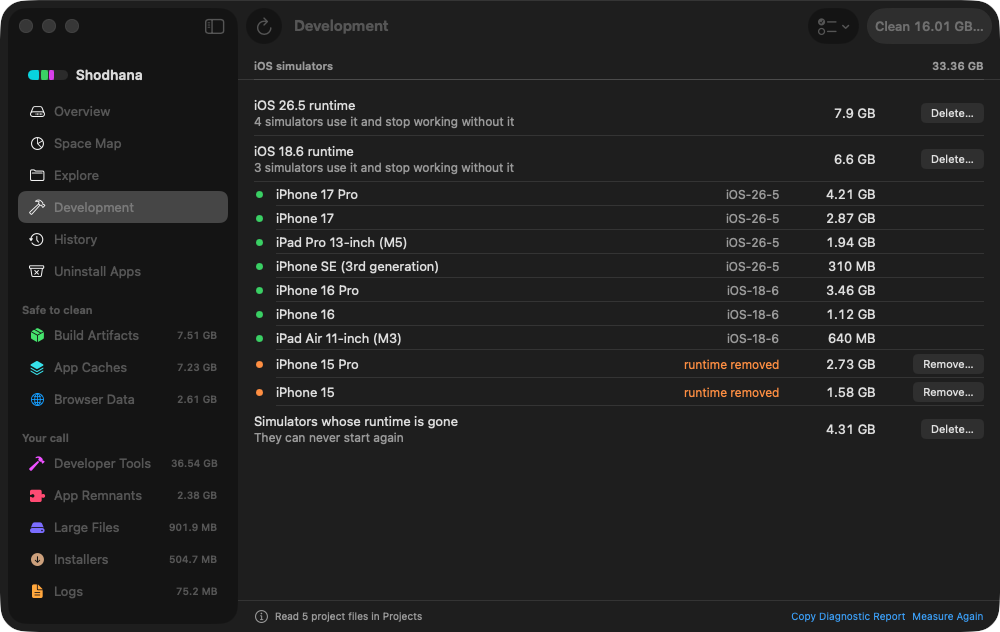
Shodhana's Development page lists every simulator
device with its runtime and size, flags the ones whose runtime is gone,
and lists the runtimes themselves. Removing a device, a runtime, or
every unavailable device at once goes through simctl — the
same commands as above, never a deleted folder — so the registry always
agrees with the disk. Only the CoreSimulator/Caches folder is
treated as an ordinary cache.
See the developer view.
Download the free trial Buy for $19, once Apple Silicon · macOS 14 or later · 14-day refund