macOS System Data is huge — what's actually in it
Last updated: August 2026
System Data has no "show in Finder" button because it is not a folder. It is the leftover bucket in the Storage pane: everything macOS could not attribute to Applications, Documents, Photos, Mail, Music, or iCloud Drive. Two Macs both reporting 180 GB of System Data can have nothing in common.
So the question is never "how do I clear System Data". It is "which of these eight things is mine".
Measure first
Grant Full Disk Access to Terminal before running any of this — without
it, du silently skips protected directories and hands you a
confident total that is missing folders.
sudo du -shx /System/Volumes/Data/* 2>/dev/null | sort -h | tail -12That gives you the top-level shape. The itemised version below is what turns it into something you can act on.
| What | Typical | Measure it | Grows back? |
|---|---|---|---|
| Local snapshots | 5–80 GB | tmutil listlocalsnapshots / |
Yes — hourly |
| iOS backups | 10–150 GB | du -sh ~/Library/Application\ Support/MobileSync/Backup/* |
No |
| Developer artifacts | 20–200 GB | See the cache table | Yes — per build |
| App containers | 5–60 GB | du -shx ~/Library/Containers/* | sort -h | tail |
Varies |
| Mail downloads | 2–40 GB | du -sh ~/Library/Mail |
Yes |
| Messages attachments | 1–30 GB | du -sh ~/Library/Messages |
Yes |
| Caches | 2–20 GB | du -shx ~/Library/Caches /Library/Caches |
Yes — immediately |
| Swap and temp | 2–20 GB | ls -lh /private/var/vm |
Yes — managed by macOS |
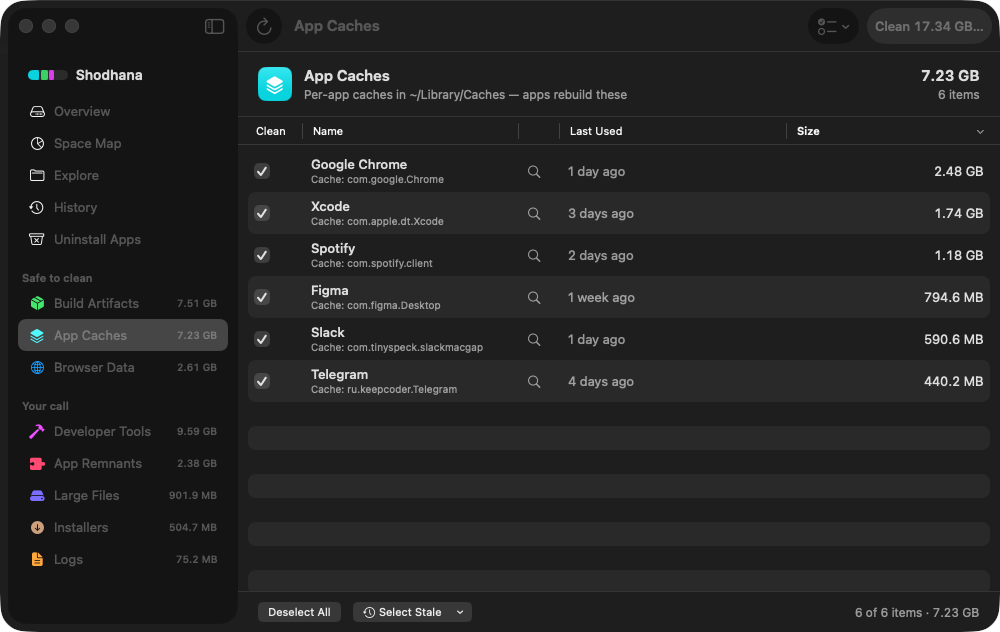
Run this scan on your own Mac: download Shodhana — free for 14 days, Apple Silicon, macOS 14 or later.
Start with snapshots — they block everything else
If Time Machine has ever been configured, macOS keeps hourly snapshots of the startup disk locally, whether or not the backup drive is attached. They retain the old copy of every block you change or delete, which means deleting anything else frees nothing until the snapshots referencing it expire.
tmutil listlocalsnapshots /macOS thins them automatically after about 24 hours and sooner under pressure. If you need the space now, ask for an amount rather than deleting by hand — this reclaims 20 GB, oldest first:
tmutil thinlocalsnapshots / 21474836480 4The trade is real: snapshots are your only local undo for a file deleted since the last full backup.
The biggest thing nobody remembers: iOS backups
Every iPhone or iPad you have ever backed up to this Mac left a full device image behind, and nothing ever removes it — not upgrading the phone, not selling it.
du -sh ~/Library/Application\ Support/MobileSync/Backup/* 2>/dev/null128G /Users/you/Library/Application Support/MobileSync/Backup/00008030-001…
Delete these through Finder — select the device, Manage Backups — rather than removing the folders directly, so the backup index stays consistent. Confirm the device is backed up elsewhere first; for a phone you still own, this is the copy that restores it.
Media libraries that never show up as media
Three categories routinely land in System Data rather than in the Photos, Music, or Applications buckets you would expect, which is why they survive every cleanup.
- Apple's sound libraries. GarageBand and Logic download
instruments and loops on first launch and never remove them — commonly
10–60 GB in
/Library/Application Support/Logicand/Library/Audio/Apple Loops. If you installed GarageBand once and never opened it again, this is free space. - Offline downloads. Music, Podcasts, and TV keep downloaded episodes indefinitely. Podcasts in particular default to keeping everything you have subscribed to.
- Photos analysis caches. Inside
~/Pictures/Photos Library.photoslibrary, face and scene recognition data can add several gigabytes on top of the images. Never edit the library's internals by hand — it is a database, and it will not survive it.
du -sh /Library/Application\ Support/Logic /Library/Audio/Apple\ Loops 2>/dev/nulldu -sh ~/Library/Group\ Containers/*.groups.com.apple.podcasts 2>/dev/null
iCloud makes files look like they are gone
With Optimize Mac Storage enabled, iCloud Drive evicts local copies of files you have not opened recently. The files still appear in Finder with a cloud icon, and their bytes become purgeable rather than used.
The reverse also holds and catches people out: turning the setting off re-downloads everything, so a Mac that had 200 GB of headroom can fill overnight with no obvious cause. If System Data grew sharply and nothing else explains it, check System Settings → Apple Account → iCloud Drive first.
Caches: real, but last
Caches are the first thing every cleanup article reaches for and among the smallest items here. They also refill within days, so the space is borrowed rather than recovered.
If you clear them, clear per-app and with the app quit:
du -shx ~/Library/Caches/* 2>/dev/null | sort -h | tail -15Do not rm -rf ~/Library/Caches wholesale.
The folder is a convention, not a guarantee. Some apps keep data there that they cannot rebuild — partially downloaded media, offline content, local databases — and running apps holding open files in a directory you are deleting produces failures that surface hours later as corruption.
Swap and temporary files: just restart
Swap files in /private/var/vm and the per-user scratch space
under /private/var/folders are managed entirely by macOS. They
grow under memory pressure and during long uptimes, and a restart returns
them to a baseline. Deleting them by hand gains nothing a reboot would not,
and can destabilise running apps.
Why it comes back
Nearly everything above is working data macOS recreates on demand. Only two categories genuinely stay gone: old iOS backups and developer build artifacts from projects you no longer touch. If System Data has grown back a month after a cleanup, those are the two worth finding, and they are the two the Storage pane will never itemise for you.
Read next
-
Where did my Mac's disk space go?
Why Finder, df, and du report three different numbers for one disk.
-
Homebrew, npm, pnpm and cargo cache sizes
The developer half of System Data, measured and cleared in one table.
-
Docker.raw is 60 GB on my Mac
A single file that routinely accounts for most of a developer's System Data.
This is the problem Shodhana was built for: System Data broken out into named, sized, dated items instead of one opaque bar — each attributed to the app or project that created it, with evidence for why it is safe to remove. See the space map.
Download the free trial Buy for $19, once Apple Silicon · macOS 14 or later · 14-day refund