Where did my Mac's disk space go?
Last updated: August 2026
You have 30 GB free. Finder says 80 GB. du insists your home
folder holds more than the disk can physically store. All three are reading
the same drive, and none of them is broken — they are answering three
different questions, and macOS gives you no hint that the questions differ.
This page explains what each number actually measures, then gives you the order to look in. That order matters more than any single command: the biggest wins on a modern Mac are almost never in the places disk-cleaning advice tells you to look first.
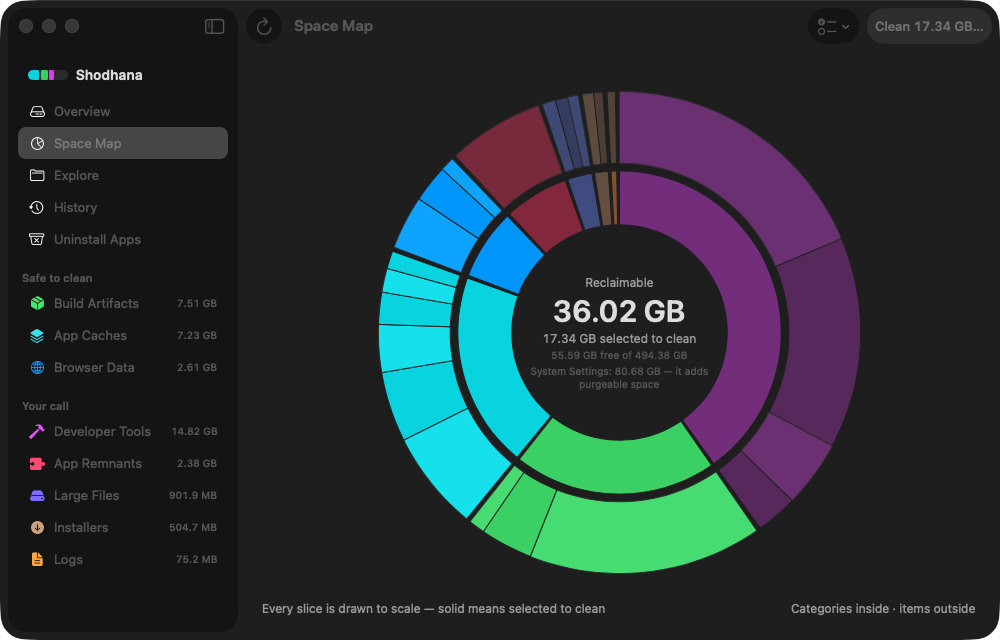
Run this scan on your own Mac: download Shodhana — free for 14 days, Apple Silicon, macOS 14 or later.
The three numbers, and what each one means
Run these together. The gaps between them are the whole story.
df -h /System/Volumes/Datadu -shx /System/Volumes/Data 2>/dev/nulltmutil listlocalsnapshots /
- Finder / System Settings → Storage reports what you could have if macOS reclaimed everything it is willing to reclaim. That includes purgeable space, so it is the most optimistic number on the machine.
dfreports what the filesystem will hand out right now. On APFS every volume in a container shares one pool of free space, so several volumes will each report the same free figure — they are not each holding that much.duadds up the files it is allowed to see. It both overcounts and undercounts, for two unrelated reasons covered below.
Purgeable space: the gap between Finder and df
Purgeable space is storage holding real bytes that macOS believes it can
delete without asking you — local Time Machine snapshots, caches it can
rebuild, and iCloud files whose contents can be re-downloaded. Finder counts
those bytes as available. df counts them as used, because until
something reclaims them, they are.
The frustrating part is that you cannot spend purgeable space directly. macOS releases it under pressure — when a copy would otherwise fail, or when free space crosses an internal threshold. So a Mac can refuse a 40 GB install while cheerfully reporting 60 GB available, and both statements are true.
Purgeable is a symptom, not a cause. The useful move is to find what is in it, and the answer is usually snapshots.
APFS local snapshots: the largest single surprise
If Time Machine has ever been configured on your Mac, it takes an hourly snapshot of the startup disk and keeps it locally — whether or not your backup drive is attached. macOS also takes one before every system update.
A snapshot costs nothing when taken. It grows as you change files, because it must retain the old version of every block you modify or delete. Delete a 40 GB folder on a Mac with snapshots and your free space does not move: the blocks are still referenced by the snapshot. This is the single most common reason "I deleted a huge folder and nothing happened."
tmutil listlocalsnapshots /com.apple.TimeMachine.2026-08-04-091500.localcom.apple.TimeMachine.2026-08-04-101500.local
macOS thins these automatically — they expire after about 24 hours, and it removes them early under space pressure. Usually you should let it. When you genuinely need the space now, ask for a target rather than deleting by hand:
tmutil thinlocalsnapshots / 21474836480 4That asks macOS to reclaim 20 GB at the highest urgency, and it removes the oldest snapshots first. Note the trade: those snapshots are your only local undo for a file deleted since the last real backup. Thin them when you need space, not as routine maintenance.
Why du overcounts
APFS copies are clones. Duplicating a 10 GB folder in Finder, or copying
with cp -c, writes almost no new data — both paths point at the
same physical blocks until one of them changes. du walks paths,
so it counts those shared blocks once for every file that references them.
On a Mac with a lot of duplicated media or virtual-machine images,
du can report a home folder larger than the disk.
Why du also undercounts
macOS gates a great deal of the filesystem behind privacy protections that
sudo does not bypass. Without Full Disk Access granted to your
terminal, du silently skips those directories — and because
everyone pipes the errors to /dev/null, the skipping is
invisible. You get a confident total that is simply missing folders.
Grant Full Disk Access to Terminal in System Settings → Privacy & Security before trusting any number a shell command gives you.
The order to actually look in
Sorted by how much space is typically recovered per minute spent:
| Look here | Typical size | Why it is first |
|---|---|---|
| Local snapshots | 5–80 GB | Invisible in Finder, and blocks every other deletion from taking effect. |
| iOS device backups | 10–150 GB | ~/Library/Application Support/MobileSync/Backup. Often years old. |
| Developer caches | 20–200 GB | DerivedData, node_modules, Docker, build artifacts. Sizes and commands. |
| Mail and Messages | 2–40 GB | Downloaded attachments, kept indefinitely by default. |
| Caches | 2–20 GB | Real, but they refill. Last, not first. |
Notice what is missing: emptying the Trash, clearing browser caches, and removing language files. Those are the standard advice, and they are the smallest items on the list.
What "System Data" is hiding
Whatever the Storage pane cannot attribute to Applications, Documents, Photos, or Mail lands in System Data. It is a leftover bucket, not a folder, which is why it has no "show in Finder" button and why it can reach 200 GB on a machine with no obvious culprit. What is actually inside it is its own page.
Read next
-
macOS System Data is huge — what's actually in it
The residual bucket, itemised, with the command that measures each part.
-
Is it safe to delete Xcode DerivedData?
Yes — and the neighbouring folder that will cost you crash reports if you delete it too.
-
Docker.raw is 60 GB on my Mac
Why pruning images does not shrink the file, and the flag that quietly destroys databases.
Every number on this page is one Shodhana shows you directly — snapshots, purgeable space, and per-project developer caches drawn to scale on the space map, each item with the evidence for why it is safe to remove, before anything is deleted.
Download the free trial Buy for $19, once Apple Silicon · macOS 14 or later · 14-day refund