Xcode's iOS DeviceSupport is 40 GB — which versions to keep
Last updated: October 2026
Yes. Every folder in iOS DeviceSupport is a copy of symbols
that still live on an iPhone or iPad. Xcode copies them again the next
time a device running that iOS version is plugged in.
It costs you one wait for "Copying shared cache symbols" — a few minutes over USB, longer over Wi-Fi — and it needs the physical device. Keep the newest two versions, delete everything older, and you lose nothing you can reach.
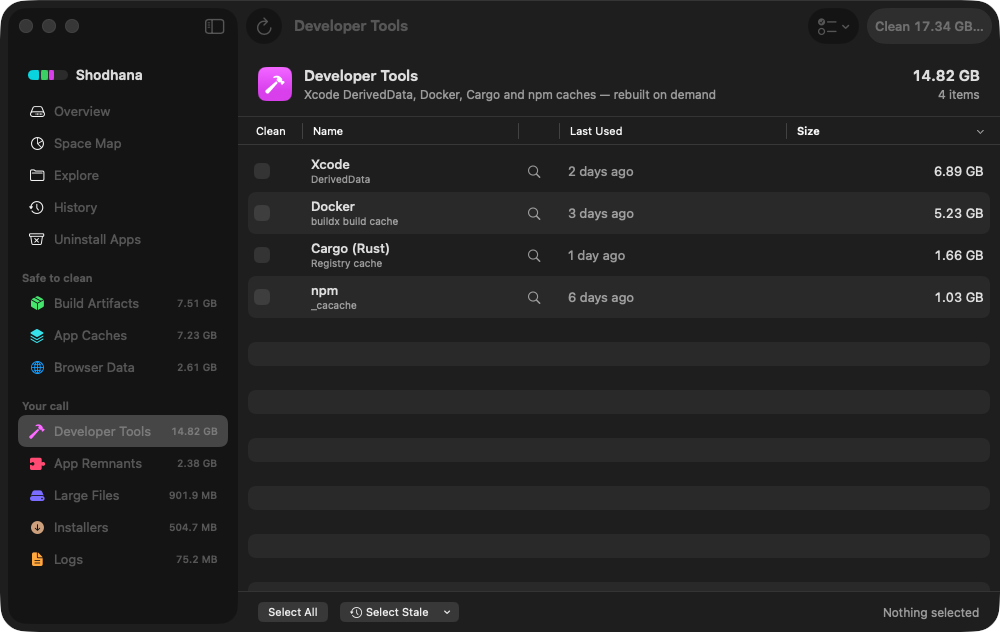
Run this scan on your own Mac: download Shodhana — free for 14 days, Apple Silicon, macOS 14 or later.
What is actually in there
Your Mac runs macOS. The UIKit your app calls into at runtime lives on
the phone, inside iOS's shared cache of system frameworks. When the
debugger stops in viewDidLoad and you step into
super, Xcode has to show you frame names for code that is not
on your Mac at all. So the first time a device connects, Xcode copies the
symbols for that device's exact iOS build across the cable and stores them
here:
~/Library/Developer/Xcode/iOS DeviceSupport/
  17.5 (21F79) arm64e/
    Symbols/
  18.0 (22A3354) arm64e/
    Symbols/
  18.6 (22G86) arm64e/
    Symbols/
One folder per iOS version, per build number, per architecture. The
Symbols directory inside each is the entire system framework
set of that iOS release, with names attached — which is why one folder is
a few gigabytes, and recent releases are commonly three to six.
The same thing happens for a watch and an Apple TV, in sibling folders
called watchOS DeviceSupport and tvOS DeviceSupport.
They are smaller and they grow the same way.
Why it grows to 40 GB without you noticing
Three things compound. iOS ships a point release roughly every month, and each one is a new build number, so each one is a new folder. Every device you have ever attached contributes its own version — your phone, the test iPad, the colleague's phone you debugged on once at a hackathon. And Xcode never deletes any of it. There is no setting for this folder: Xcode › Settings › Components manages simulator runtimes, not device symbols. The filesystem is the only interface.
A developer who has updated one iPhone on schedule for two years has twenty-odd folders here. Only the newest one is ever used.
Which versions to keep
Keep the newest version per OS family: that is the device in your pocket. Keep one more as a spare, for the second device or the older test unit that has not updated. Delete everything else. Two per family is also what Shodhana keeps, and the rule is deliberately dumb — if an old device shows up next month, its symbols re-copy in a few minutes, so the cost of being wrong is a coffee break, not a lost build.
See what you have, biggest last, with the date Xcode last touched each one:
du -sh ~/Library/Developer/Xcode/*DeviceSupport/*/ 2>/dev/null | sort -hls -lt ~/Library/Developer/Xcode/iOS\ DeviceSupport/The date is the one that matters, not the version string. A folder modified last week belongs to a device you are still using, whatever its number says. One untouched since last spring belongs to an iOS that nothing you own runs any more.
Delete safely
Quit Xcode first — not because it will break, but because deleting a folder mid-copy leaves a half-written symbol set that confuses the next debug session. Then send every version except the two newest to the Trash:
cd ~/Library/Developer/Xcode/iOS\ DeviceSupport && \
  ls -td -- */ | tail -n +3 | while IFS= read -r v; do
    mv "${v%/}" ~/.Trash/"$(date +%F) ${v%/}"
  done
ls -td sorts the folders newest first, tail -n +3
skips the two you keep, and the date prefix means a second run of this
next year does not collide with the first. Repeat with
watchOS DeviceSupport and tvOS DeviceSupport if
you have them. Everything is recoverable until you empty the Trash.
Do not delete: the DeviceSupport inside Xcode.app
/Applications/
Same name, different thing. This copy ships inside Xcode, it is part of Xcode's code signature, and removing anything from it makes the whole app fail its integrity check — Xcode either refuses to launch or macOS reports it as damaged. Reinstalling Xcode is the only fix. The folder you can clean lives in your home directory; the one you cannot lives in the app bundle.
The neighbour: XCTestDevices
One directory up, ~/Library/Developer/XCTestDevices holds
simulator clones that Xcode creates for parallel test runs. They are
disposable — every test run makes fresh ones — but Xcode does not always
clean up after a run that was cancelled. Safe to delete when nothing is
testing. If xcodebuild or the Simulator is running, wait: a
test in flight is using them.
Read next
-
Is it safe to delete Xcode DerivedData?
The other Xcode folder that is safe, the sibling that is not, and what the next build costs.
-
Homebrew, npm, pnpm and cargo cache sizes
One page, one table: where each toolchain hides its cache, how to measure it, and what clearing it costs.
-
Where did my Mac's disk space go?
Why deleting 40 GB sometimes frees nothing at all.
Shodhana lists each DeviceSupport version under Developer Tools as its own row, dated by when Xcode last touched it, and leaves the newest two per OS family off the list entirely — so what you see is only what can go. XCTestDevices appears alongside, and is withheld while Xcode, xcodebuild or the Simulator is running. See the developer view.
Download the free trial Buy for $19, once Apple Silicon · macOS 14 or later · 14-day refund